
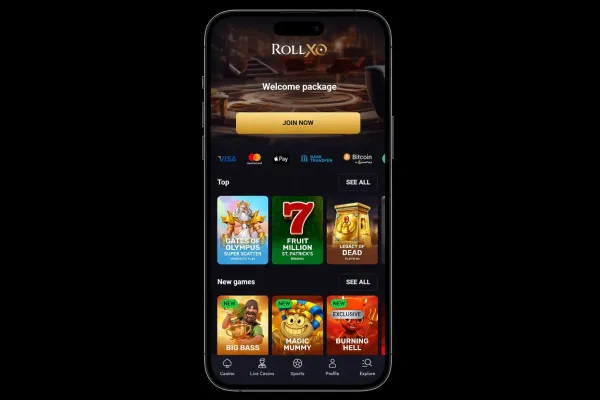

RollXO has no iPhone app, so on an iPhone you use the mobile site in Safari. There is nothing to find in the App Store and nothing to install. The steps above show how to open the site and add a shortcut to your home screen, and this page explains what that means in practice.
What you can do on an iPhone

On an iPhone, everything at RollXO happens in the browser. You open the RollXO website, log in or create an account, and use the casino from there. The live casino is part of the RollXO range, so live games are available through the browser as well.
The difference from a computer is in how you use it. You work with taps on a smaller screen, and the site is read at phone size. The account itself is your own RollXO account, whichever device you use.
Since there is no iPhone app, there are no app-only features to describe. The mobile site is what you have, and the mobile version page explains it in more detail. For the same question on another platform, see the Android app page, and the app page gives the overview.
No App Store listing to look for

An iPhone app would come from the App Store. RollXO has no such app, so a listing there that claims to be one is not from the casino, and you do not need to look. The browser is the whole route.
The shortcut in the steps above is the nearest thing to an app. It is a link to the mobile site that sits on your home screen and opens in one tap. It does not install anything, and removing it does not affect your account.
Treat any claim of an iPhone app with caution. A message, an advert or a web page that offers a RollXO app for iPhone is not offering something the casino has. Do not install apps from unknown sources, and do not follow a link that asks you to install a profile or a file. Enter your password only on the RollXO website that you opened yourself in Safari.
To get started, the pages on logging in and signing up cover the account steps, and the welcome bonus page covers the offer for new accounts. T&Cs apply to the offer, so read its terms before you deposit.
Practical points for iPhone

Protect the phone with a passcode, and sign out when you finish if anyone else uses the device. Choose a password that you use nowhere else, and do not let the phone save it if others can pick it up.
Live games stream video, which uses more mobile data than browsing menus. Check whether you are on Wi-Fi or a mobile plan before you open one, and avoid public Wi-Fi when you sign in to an account that holds money.
Keep Safari and your iPhone up to date, because the site runs inside the browser. If a page is slow, close other tabs and reload it.
Gambling is entertainment that costs money. If the account offers deposit limits or time-outs, set them before you play, and read the safer gambling page for how they work.